

How to set up glossaries and style rules for brand voice in DeepL: 5 easy steps
Key Takeaways
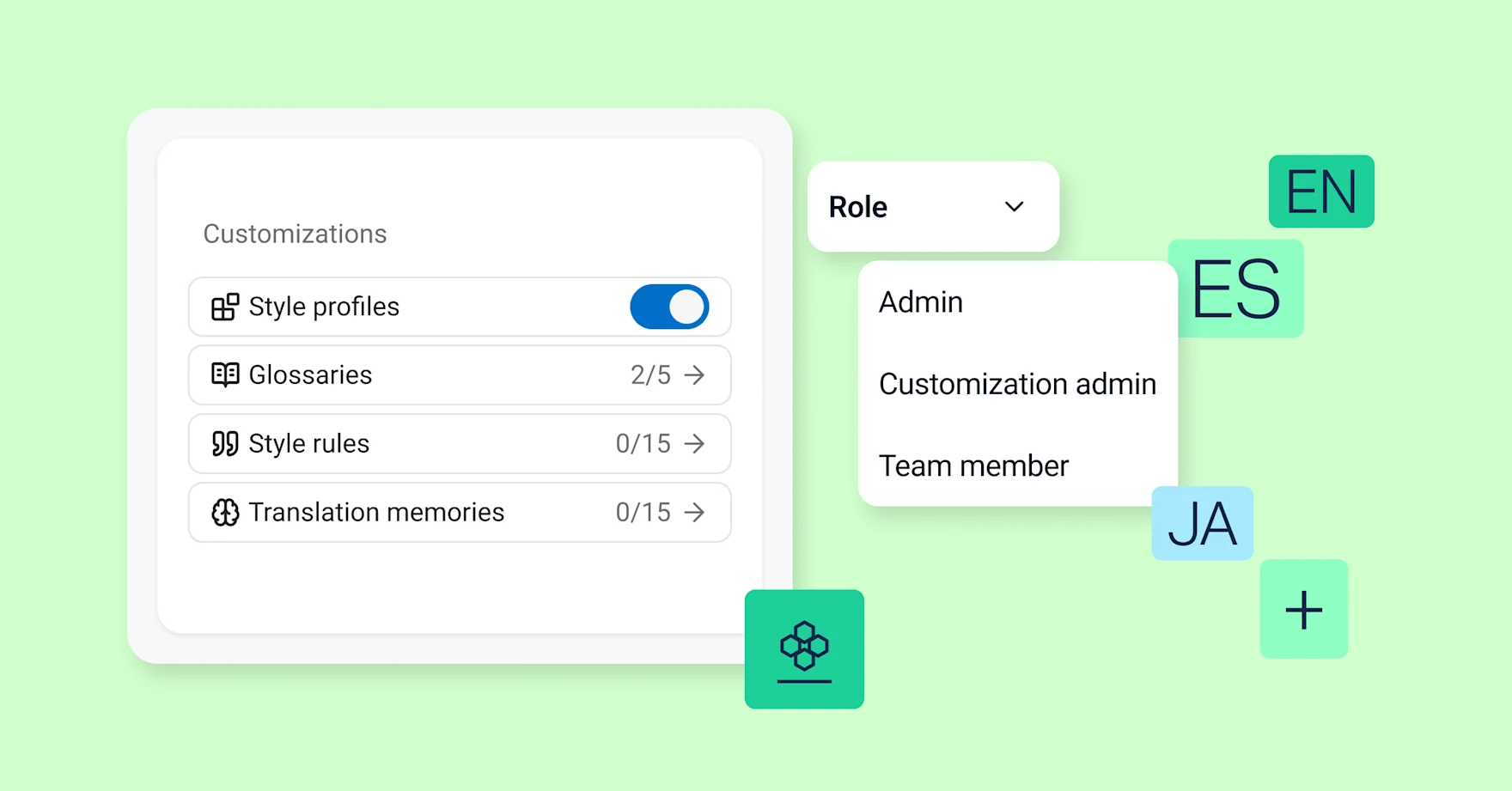
- DeepL's Customization Hub lets language experts build glossaries, style rules, and style profiles that enforce brand voice automatically.
- The Customization Admin role gives language professionals control over translation quality without needing full DeepL Administrator access.
- Glossaries can be generated automatically from previously approved translations, saving language experts time on manual terminology work.
- Style rules can be autogenerated from approved sample text, capturing brand tone and nuance in target languages.
- Style profiles combine glossaries and style rules, then apply automatically across teams, scenarios, and use cases.
- Customization Hub settings apply consistently across Translator, Write, API, and Voice, keeping brand voice aligned everywhere.
If you’re a language expert or localization specialist for a business, then AI should be working for you.
We built the DeepL Customization Hub to make sure it is.
We designed the advanced customization features in DeepL Customization Hub to ensure language professionals’ decisions about terminology, style, and tone apply to every translation, everywhere in their organizations.
Visit the DeepL Customization Hub.
Take control of DeepL Customization Hub as a Customization Admin
We’ve created a new Admin role for DeepL that puts language experts in charge of how they use and enforce these customization features. It’s called the Customization Admin.
We designed it to give translation and localization experts control of how their organizations use DeepL. It helps you do far more with the language, cultural, and brand knowledge that you have.
Customization Admin access is different from DeepL Administrator access. You won’t have control over accounts and pricing plans. However, you’ll get access to all the controls you need to use Customization Hub’s advanced features and define how teams handle translations.
Your organization can appoint as many Customization Admins as it needs.
What you can do as a DeepL Customization Admin
Once you have Customization Admin access, you can easily create glossaries and style rules that apply automatically to DeepL translations. You can also enforce style profiles for different teams, scenarios, and use cases.
And that means the translations DeepL creates are translations you’re happy to approve.
If you’re a language expert for a business with a DeepL Ultimate or Enterprise plan, you should be a Customization Admin. It’s your passport to a wider, strategic role with less time spent on repetitive edits.
You can deliver more high-quality translations and focus more time and attention on how your brand comes across in different languages, cultures, and scenarios.
How to set up your Customization Admin workflow in 5 steps
Here are five easy steps to get set up and start using the Customization Admin persona’s power to increase impact.
Step 1. Ask your DeepL Administrator to assign you as a Customization Admin
Assigning Customization Admin access is easy. Ask your DeepL Administrator to log into DeepL and navigate to the “Users” menu.
Once there, ask your DeepL Administrator to take these steps:
- Select your name from the list.
- Hover over the three dots next to it.
- Choose to grant you Customization Admin privileges.
Once you have Customization Admin access, you can use the unique power of DeepL AI to quickly and easily create the style profiles your organization will use for translations.
Step 2. Start building style profiles with glossaries
Generating glossaries from previous translations that you’ve approved is a great place to start. You can do this in just a few steps with DeepL.
Imagine you work for a multinational corporation and want to create a style profile to guide global marketing campaigns for the Life Sciences team. You’ve previously translated, reviewed, and approved multilingual campaigns for the team, so you’ve got great material to use to create a glossary:
- Visit the “Glossaries” section of your DeepL interface.
- Choose the option to “Generate a glossary with AI from your past translations.”
- Choose a descriptive name, like “Life Sciences.”
- Specify the source and target languages.
- Drag and drop the relevant source and translated files.
- Click “Submit.”
- Scroll down to review your glossary and make any changes.
- Choose “Generate glossary.”
And you’re done.
Discover five ways to transform document translation with DeepL Translator.
Step 3. Autogenerate style rules from sample text
Thanks to DeepL AI, you can create comprehensive and coherent style rules in minutes. Do this using existing copy in a target language that you know embodies your brand style and tone of voice.
In our example, say you’ve helped create a Life Sciences marketing campaign for Spanish-speaking audiences. It captures the nuance of how your brand communicates. That’s a fine foundation:
- Visit the “Style rules” page in your DeepL account.
- Choose the option to “Create a new style rules list.”
- Choose your target language.
- Select the option to “Create style rules from sample text.”
- Drag and drop your approved copy.
- Review and edit the style rules that DeepL recommends from it.
- Click “Generate” to create your new list.
Step 4. Use your glossary and style rules to create style profiles
Once you’ve generated a glossary and list of style rules for a type of translation, you’ve got everything you need to create a style profile:
- Start on the “Style profile page.”
- Choose the option to “Create a new profile.”
- Apply a meaningfully descriptive name. In our example, you might call this profile “Marketing for Life Sciences” because it’s designed for that team and use case.
You can now quickly and easily populate your new style profile with the glossary and style rules list you’ve already created:
- Choose the options to “Select existing glossary” and “Select existing style rule.”
- Click the ones you’ve generated.
Step 5. Share and enforce style profiles
As a Customization Admin, you can define which style profiles different teams in your organization use for their translations.
This is key to generating consistently on-brand, on-message translations for every area of your business. It also minimizes the time you spend on repetitive editing.
Here’s how to enforce your style profile for all relevant teams:
- Navigate to the “Style profile” page.
- Open the “Usage control” menu.
- Choose “Enforce.”
- Choose either specific teams or everyone in your organization when DeepL asks which teams you’d like to share the style profile with.
Try our trusted DeepL Translator in your browser (for free).
Why translation choices matter more with AI at scale
As a language professional, you know that the choices made in translations matter. It’s not just a case of getting general meaning across. The words and phrases you adopt in a target language send crucial signals about your business, expertise, values, and understanding of an audience.
In the old model of translation and localization, that knowledge came with the burden of constantly checking and correcting translations to ensure they align with your brand.
The situation is different in the AI-powered translation model that Customization Hub makes possible. As a Customization Admin, you don’t just know that translation choices matter. You can enforce those translation choices at scale.
Discover all the Customization Hub features that you can use as a Customization Admin.
Put your language expertise to work, everywhere
You already know what makes a translation right for your brand. Now make sure it stays that way everywhere you use content.
With DeepL's Customization Hub, your glossaries, style rules, and style profiles apply across Translator, Write, Voice, and API. Your brand voice stays consistent anywhere your business communicates, from written contracts to live customer calls.
Contact sales to see how our Language AI suite and Customization Hub could power your multilingual business communication.